Illustrative use case
Bulk calendar invites: choose the flow your event needs
The 60,000-person example is a planning scenario, not a customer result or delivery benchmark.
An illustrative 60,000-registrant scenario showing invitation-only setup, optional verification and when a fuller attendee flow may fit.
5 min read
An illustrative use case based on Bloomod’s event settings. The 60,000-person example is a planning scenario, not a customer result or a delivery benchmark.
Bloomod lets you send bulk calendar invites with the automation steps you choose for each event. Turn on Invite for calendar invitations alone. Enable Verify, Remind and Follow-up when your event needs those steps too.
Attendee email verification is completely optional. When Verify is off and Invite is on, attendees do not need to complete Bloomod’s email-verification step before an invitation can be sent.
The scenario: 60,000 registrants, one task
Imagine a training company preparing a webinar for a list of 60,000 people who registered for that event. The team already has a plan for other communication. It wants Bloomod to handle the calendar invitation, with the date, time and joining link included.
The team chooses the invitation-only configuration. Its purpose is straightforward: send the event invitation without adding verification emails, reminders or follow-up messages to this workflow.
The team would confirm the sending setup, credits and delivery window with Bloomod before scheduling an operation of this size.
Set up the invitation-only flow
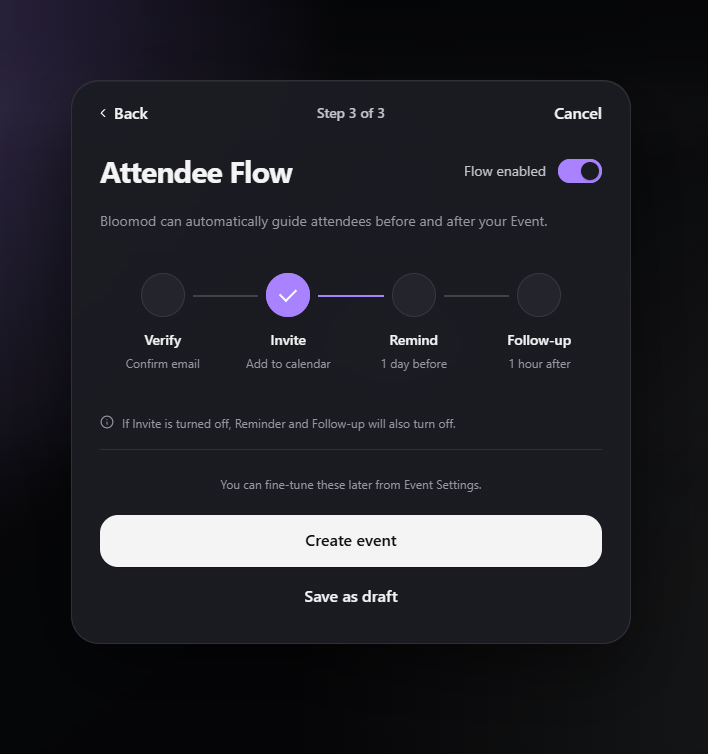
In the event’s Attendee Flow settings:
- Keep Flow enabled switched on.
- Turn Invite on.
- Turn Verify, Remind and Follow-up off.
- Add attendees through event registration or a CSV import.
Registrations and imported attendees follow this event’s configuration. Bloomod can send their calendar invitations without first sending a verification request. The disabled reminder and follow-up steps do not run unless the organizer enables them.
Email verification is a workflow choice. The event still needs attendee email addresses, a configured sending channel and sufficient credits. Turning Verify off does not remove the organizer’s responsibility to invite people who expect the event communication.
Choose the sending channel and plan the timing
Bloomod supports invitations through a connected Google or Microsoft calendar, or through Bloomod SMTP. For a large invitation-only operation, discuss Bloomod SMTP and the required sending capacity with the team.
Google and Microsoft apply their own account and service limits. Bloomod SMTP uses an email delivery route with its own sending constraints. Choosing it does not guarantee immediate delivery or unlimited throughput. See the official Google Calendar usage guidance and Microsoft Exchange Online limits.
For this scenario, plan the sending window before the webinar. Also confirm that the webinar platform can accommodate the expected audience: the invitation list and the meeting room’s capacity are separate.
What the invitation-only setup uses
Under Bloomod’s current credit rules, each invitation sent through Bloomod SMTP uses one email credit. An invitation sent through a connected Google or Microsoft calendar uses one calendar credit.
For the illustrative SMTP example:
- 60,000 initial invitations would use 60,000 email credits if all are sent and charged under the normal credit rules.
- No verification emails are scheduled by this configuration.
- No automated reminder or follow-up emails are scheduled by this configuration.
This calculation covers the initial invitations only. Later updates, cancellations or other additional messages can use more credits. For large volumes, confirm pricing and capacity with Bloomod rather than treating a standard plan allowance as the event’s full budget.
Another event can use the full flow
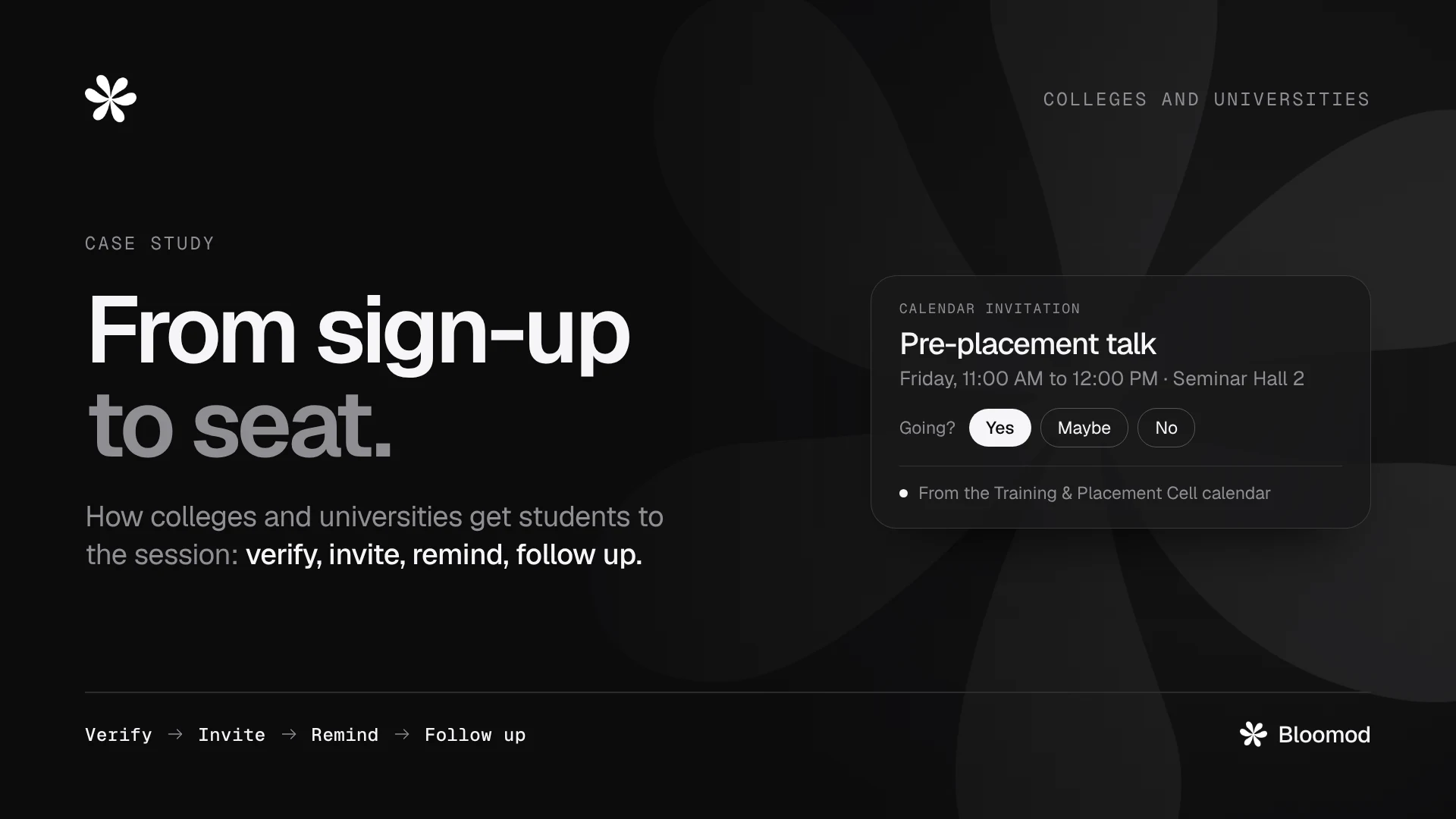
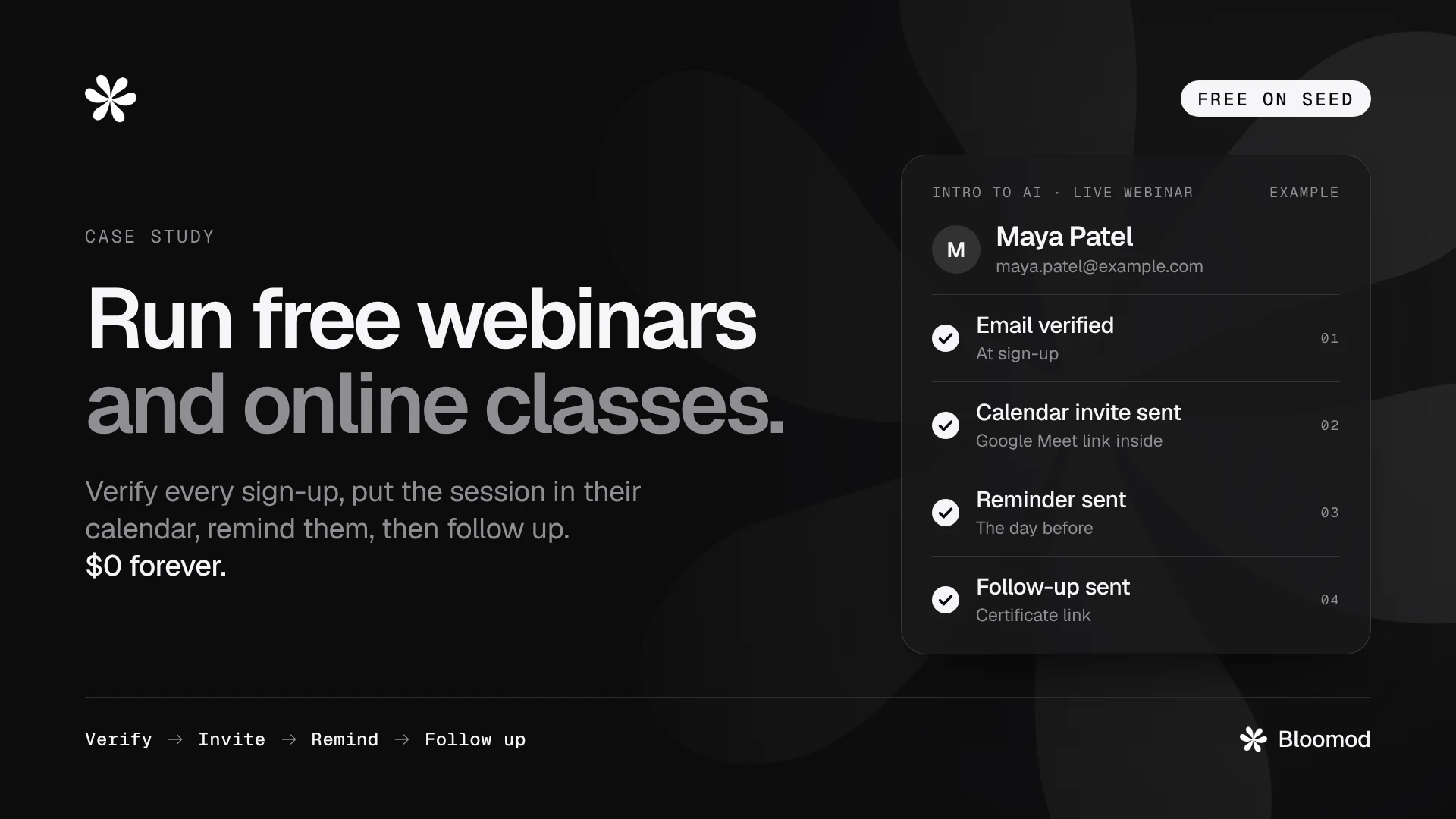
A product demo, online class or workshop may benefit from communication before and after the event. For events such as these—with, for example, 200–1,000 registrants—Bloomod recommends considering its full flow:
- Verify: ask attendees to confirm their email address.
- Invite: send the calendar invitation after confirmation when verification is enabled.
- Remind: send the configured reminder before the event.
- Follow-up: send the configured message after the event.
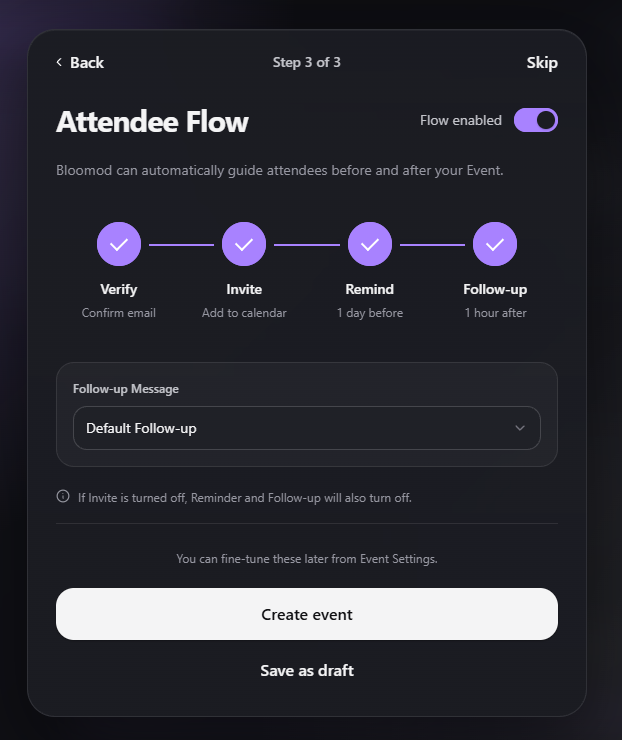
These audience sizes are examples, not rules for choosing a flow. A small event can use invitations alone. A larger event can include other steps when its sending capacity and schedule support them.
The screenshots also show a dependency: turning Invite off turns Reminder and Follow-up off. The organizer can adjust the flow later in Event Settings; check event timing and delivery status before making changes.
Questions organizers ask
Is verification compulsory for bulk calendar invites?
No. Attendee email verification is optional for each event. With Verify off and Invite on, Bloomod can send calendar invitations without an email-verification step. With Verify on, confirmation is required before the automated invitation.
Does invitation-only mode send reminders or follow-up emails?
No. In the configuration shown above, both steps are disabled. They remain off unless the organizer enables them.
Does every invitation automatically appear in the recipient’s calendar?
Calendar placement and RSVP behavior depend on the recipient’s provider and settings. Sending an invitation does not guarantee calendar acceptance or attendance. Learn how Bloomod’s calendar invitations work.
Does turning off attendee verification remove custom-domain verification?
No. These are separate checks. Attendee verification is an optional event step. A custom sending domain still needs the required setup and verification before use.
Choose the flow for your next event
Start with the communication your event needs. Use invitation-only mode for calendar invitations, or enable verification, reminders and follow-up to support a fuller attendee journey.
Explore Bloomod’s bulk calendar invitations or review plans and credits.