Case study
How to run a free webinar or online class with Bloomod: verify, invite, remind, follow up
Bloomod runs free webinars and online classes on four steps: verify every sign-up, send a calendar invitation, remind attendees the day before and follow up with a certificate or next-class link. All four are free on Seed.
7 min read
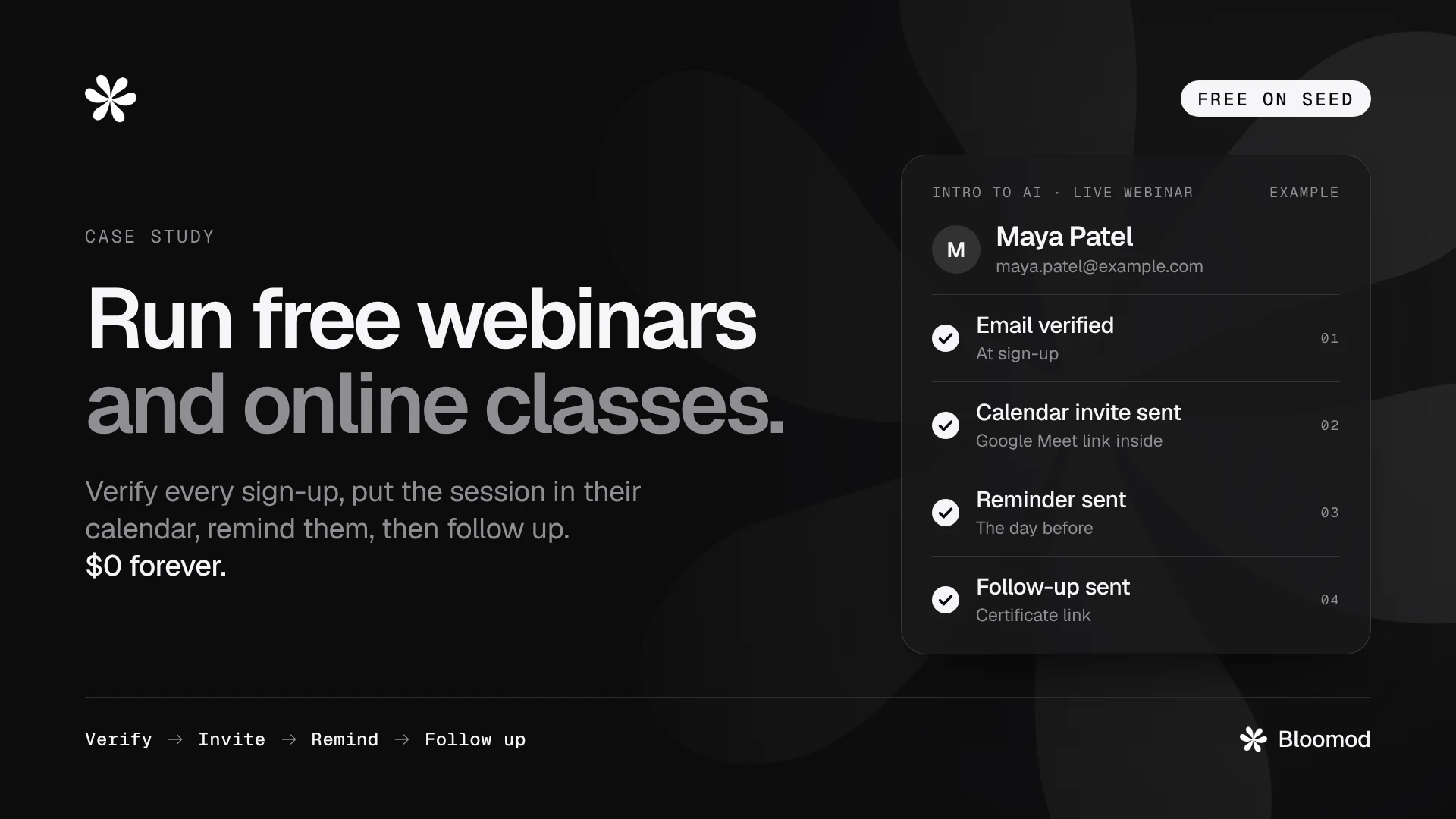
Bloomod lets anyone running a free webinar or online class verify every sign-up, send a calendar invitation with the joining link, remind attendees the day before and send a follow-up email after the session. All four steps run on Bloomod Seed, the free plan: $0 forever, no card required, with 2,000 calendar invitations and 200 emails every month.
Bloomod sets no limit on the number of events or registrations. The follow-up email can carry a certificate link, a recording, or a sign-up link for the next class.
Why free webinars and classes lose people
A free webinar or online class can fill up on sign-ups and still start with empty seats. The sign-up was easy, so it carried little commitment.
Four gaps cause most of the loss:
- Bad addresses. Typos and throwaway emails mean the joining link never arrives.
- Nothing in the calendar. A confirmation email gets buried. The session never makes it into the attendee's week.
- No reminder. People who meant to come forget on the day.
- No next step. The session ends, and there is no certificate, recording or next class to keep people coming back.
The attendee flow below closes each gap with one step.
The free attendee flow: Verify, Invite, Remind, Follow up
Every Bloomod event runs on the same four steps, and each one can run on its own once it is switched on.
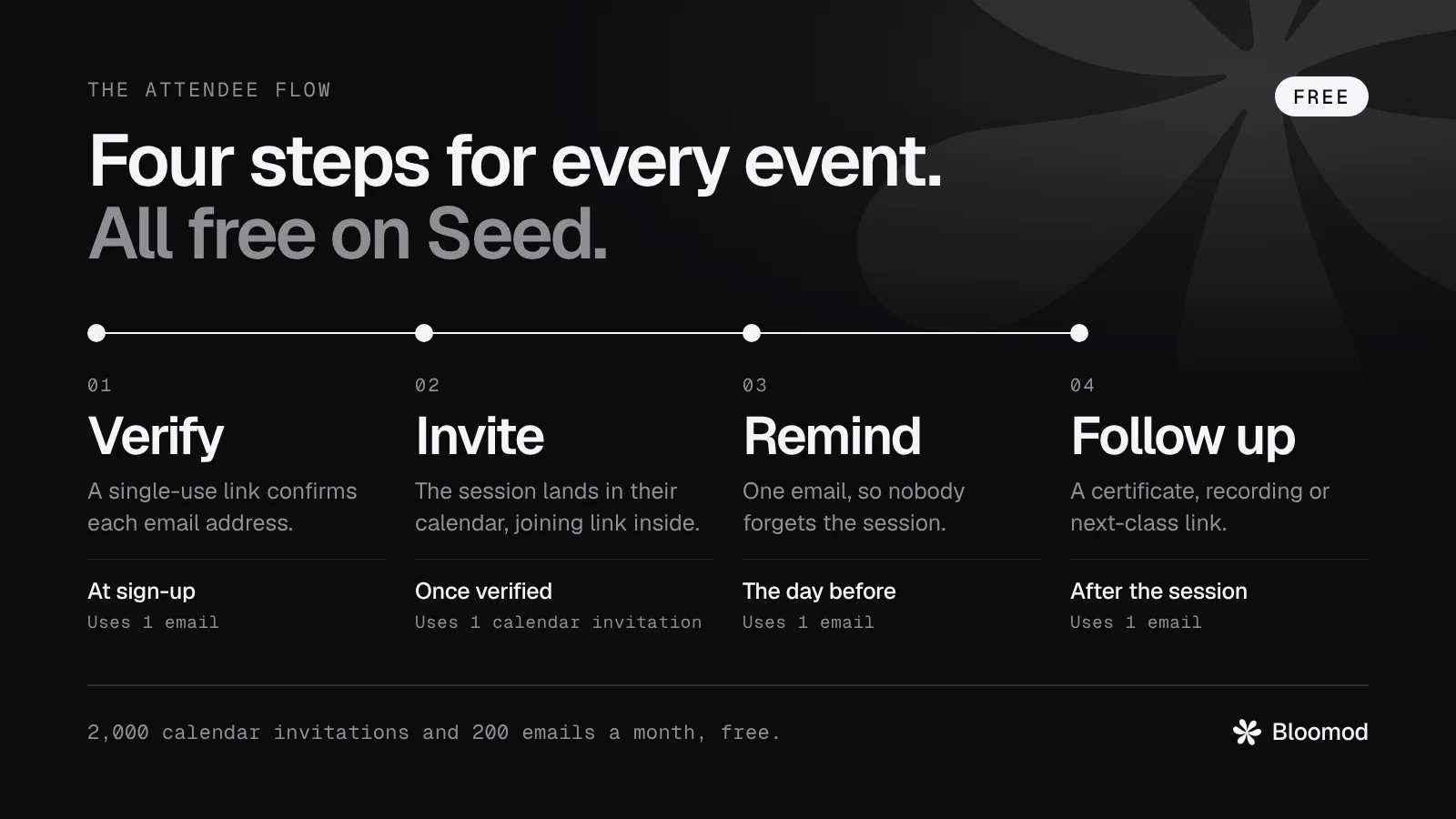
Here is what one attendee goes through, from sign-up to after the session:
- Verify, right after they sign up. The attendee gets an email with a single-use link to confirm their address. Throwaway addresses can be blocked at sign-up.
- Uses 1 email credit.
- Invite, once their email is verified. A calendar invitation arrives from your own Google or Microsoft calendar, with the joining link inside.
- Uses 1 calendar invitation credit.
- Remind, the day before the session. One reminder email goes out on its own.
- Uses 1 email credit.
- Follow up, after the session. One email with a button to a certificate, the recording, slides or the next class's sign-up page. You send it, or schedule it.
- Uses 1 email credit.
The invitation is a real calendar event, so it works in Google Calendar, Outlook, Microsoft 365 and Apple Calendar.
How to set it up on the free plan
Setup takes six steps. You connect your calendar once; the rest is done for each event.
- Create a free account. Start on Seed. No card is needed.
- Connect your calendar. Sign in with Google or Microsoft. Seed includes one connected calendar, and every invitation goes out from it.
- Create the event. Add the title, date, time, time zone and a short description. Choose the joining link: Google Meet, Microsoft Teams or your own meeting link.
- Open the sign-up page. Turn on the public event page and share its link on WhatsApp, LinkedIn, email or your website, or embed the sign-up form on your own page. You can also import a CSV list or add people by hand.
- Switch on automation. Turn on verification, calendar invitations and the reminder one day before. From here, every new sign-up moves through the steps without you.
- Set up the follow-up. Pick a message design, such as Resources or Next Steps, and add your button link: a certificate, the recording, slides or the next class. Send it after the session, or schedule it.
Example: a free 60-person AI webinar, start to finish
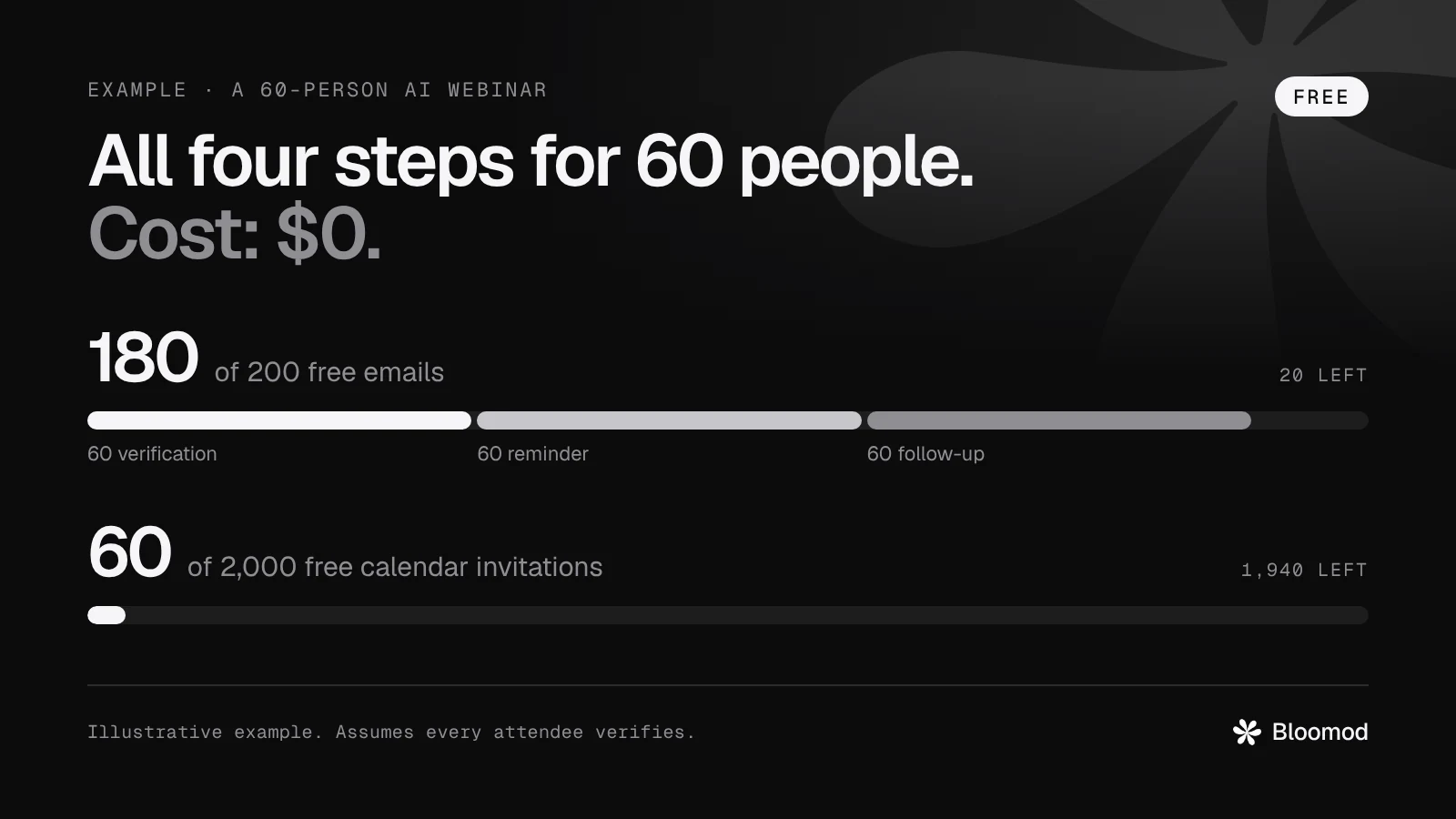
A one-hour AI webinar with 60 attendees uses 180 of the 200 free emails and 60 of the 2,000 free calendar invitations, so it costs $0. This is an illustrative example, not a customer result, and it assumes every attendee verifies.
- Sign-up. 60 people register from the event page shared on LinkedIn and WhatsApp.
- Uses no credits.
- Verify. Each gets a single-use link and confirms their email.
- Uses 60 email credits.
- Invite. Each gets a calendar invitation with the Google Meet link.
- Uses 60 calendar invitation credits.
- Remind. One reminder goes out the day before.
- Uses 60 email credits.
- Follow up. After the session, each gets a certificate link and a sign-up link for the next class.
- Uses 60 email credits.
Total: 180 of 200 free emails and 60 of 2,000 free calendar invitations. Cost: $0.
The next class's sign-up link in the follow-up starts the same flow again for the next event.
What the free Seed plan includes
Seed runs the whole flow at $0. The monthly email allowance is what sets how many people go through all four steps for free.
- Price: $0 forever, no card required.
- Events and registrations: no limit.
- Attendees per event: no Bloomod limit with your own meeting link. Google Meet events take up to 200 and Microsoft Teams events up to 500, the meeting platforms' own limits.
- Calendar invitations: 2,000 a month.
- Emails (verification, reminders, follow-ups): 200 a month.
- Also included: a sign-up page and embeddable form, CSV import and adding people by hand, and blocking of throwaway email addresses.
- Connected calendars: 1, Google or Microsoft.
- Email sender: Bloomod's domain, with Bloomod branding.
- RSVP Reporting: add-on, $10 a month (included in Stem).
- More credits: top up any time without upgrading.
With all four steps on, each attendee uses 3 emails and 1 calendar invitation. The 200 free emails therefore cover about 66 attendees a month; larger groups top up or move to Stem.
Frequently asked questions
Is Bloomod free for webinars and online classes?
Yes. Bloomod Seed costs $0 forever, needs no card and runs all four steps: verify, invite, remind and follow up. It includes 2,000 calendar invitations and 200 emails every month.
Is there a limit on attendees per event?
Bloomod sets no limit of its own when you use your own meeting link. Google Meet events take up to 200 attendees and Microsoft Teams events up to 500, which are the meeting platforms' limits.
Can I send certificates after an online class?
Yes. Add the certificate link as the button in the follow-up email, and every attendee who got the invitation receives it after the class.
Do attendees need a Bloomod account?
No. Attendees sign up with their name and email on your event page, then confirm their email with one link.
Which calendars does it work with?
You connect a Google or Microsoft calendar to send invitations. Attendees receive them in Google Calendar, Outlook, Microsoft 365 or Apple Calendar.
When does the reminder go out?
One reminder email goes out automatically the day before the session. You can also send a reminder by hand at any time.
Can I see who is coming?
Seeing calendar replies (Going, Maybe, Can't come) is RSVP Reporting, an add-on at $10 a month on Seed and included in Stem. The four core steps work without it.
What happens when the free emails run out?
You can buy more email credits without upgrading, or move to Stem for 3,000 emails a month. Calendar invitations have their own allowance of 2,000 a month on Seed.
Run your next session on Seed
Seed is free forever and needs no card. Create your free account, connect your calendar and open your first sign-up page.
See how webinars and coaching institutes use Bloomod, or compare plans on the pricing page.